How to use RentDesk24
From an empty account to your first reminder in about ten minutes. Follow the steps, or jump to the guide for your role.
Your first property, step by step
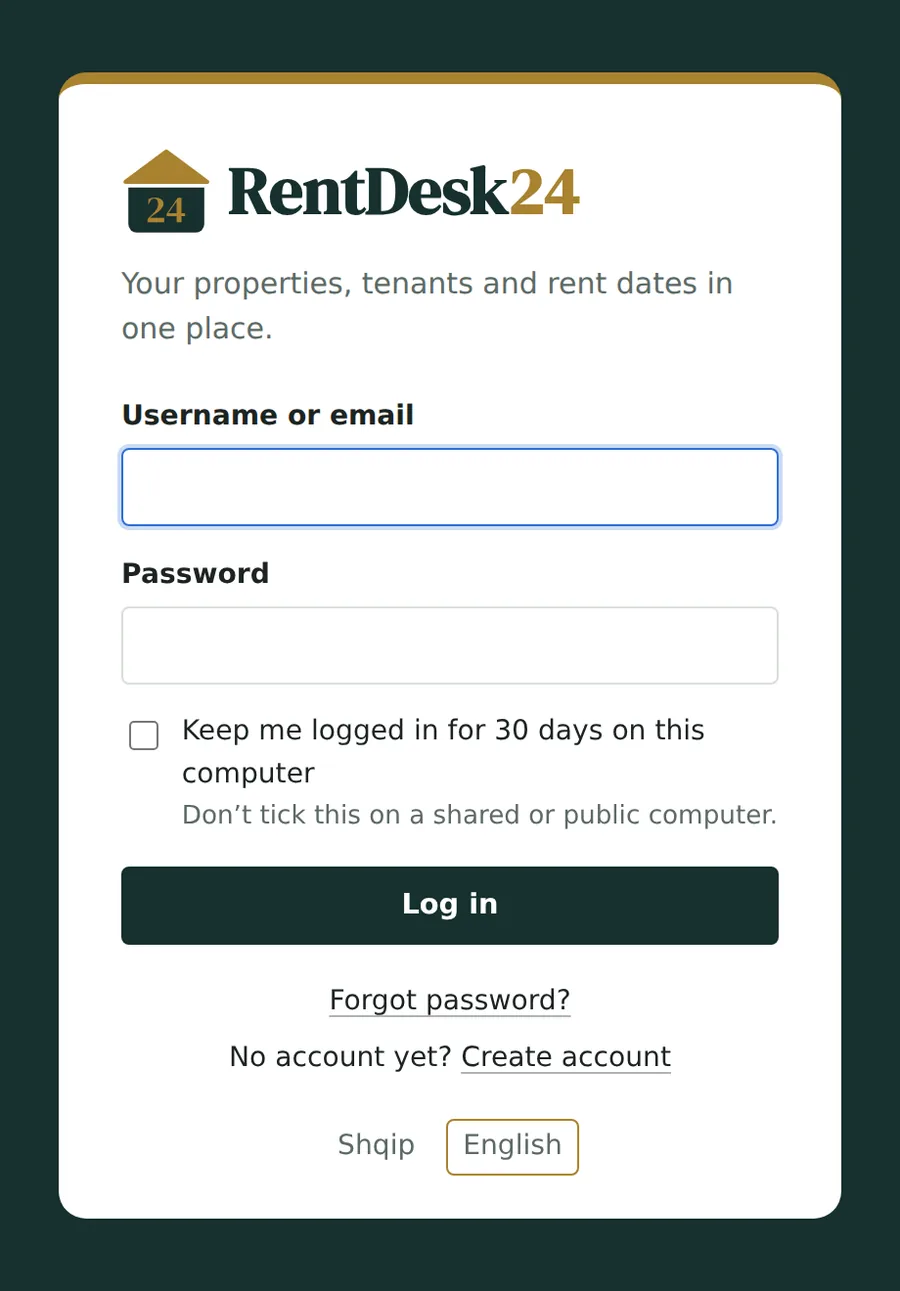
1. Create your account
It takes one minute and costs nothing.
- Click Get started free and fill in your name, a username, your email and a password.
- Open the confirmation email and click the link — then log in.
- Choose your language with SQ / EN at the bottom of the menu. You can switch any time.
Tip: on your own computer, tick Keep me logged in for 30 days so you don’t have to log in every day.
2. Add your property
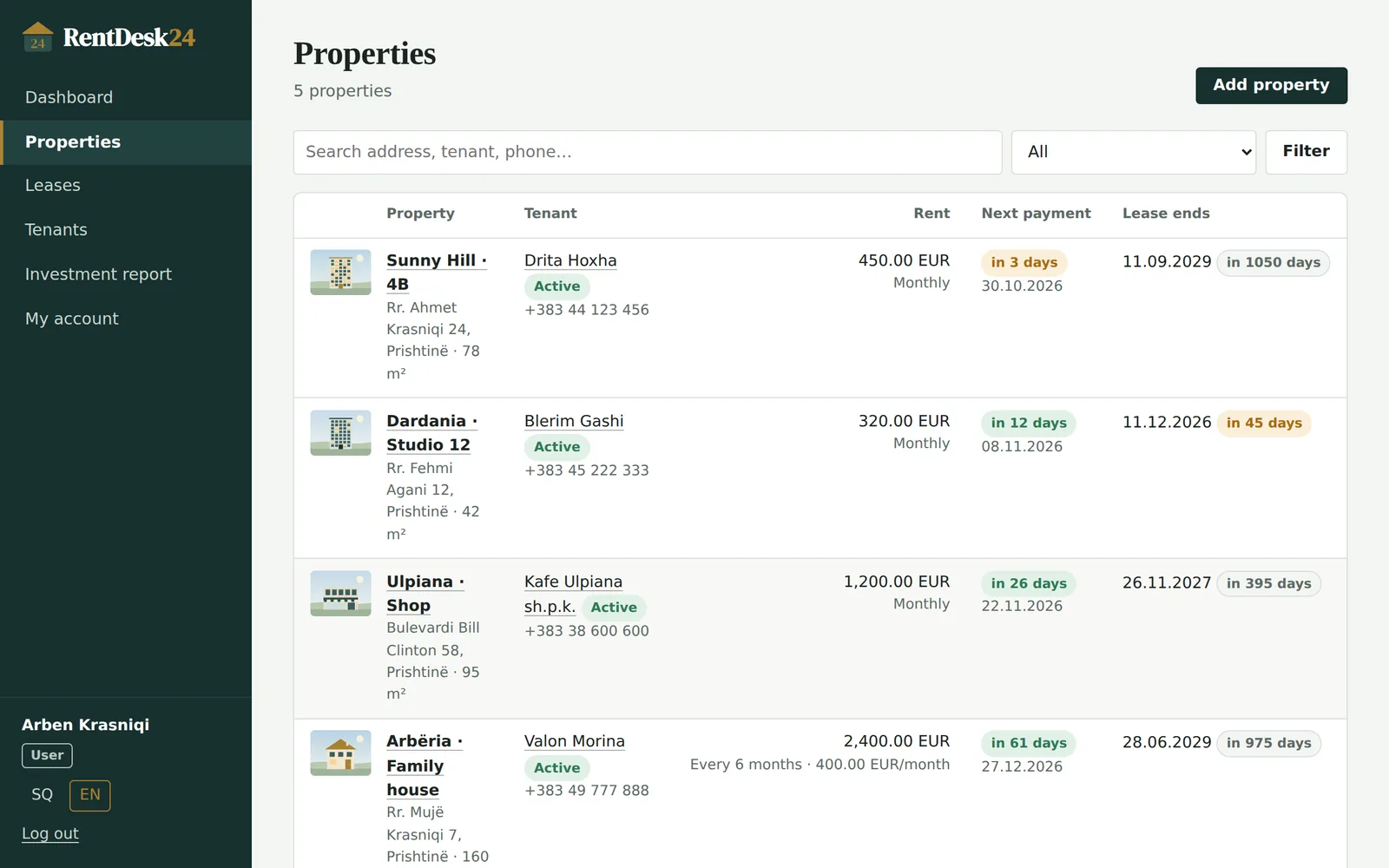
You add each property only once — it stays, even when tenants change.
- Go to Properties → Add property.
- Enter the address, city and area. Add a short description if you like (floor, parking, meters).
- Fill in the bank details where the rent should be paid. Your tenant will see them.
- Upload a few photos and press Add property.
Tip: the IBAN is checked as you save, so a typo can’t send your tenant’s money to the wrong account.
3. Start a lease
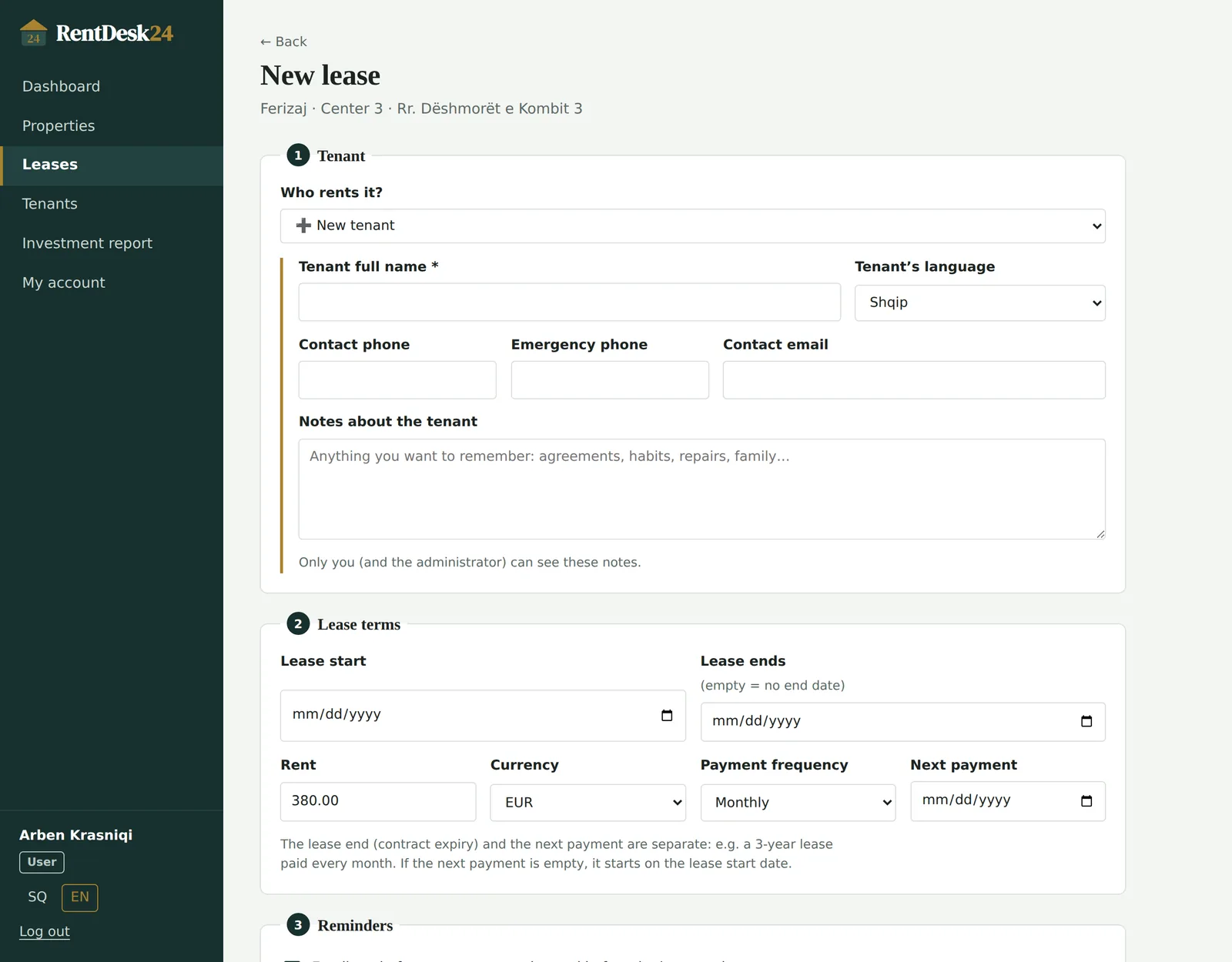
A lease is the agreement between one tenant and one property.
- On the property, press + New lease.
- Under Who rents it? pick an existing tenant or choose New tenant and fill in their details.
- Enter the lease start, the lease end (leave it empty if there is none), the rent and how often it is paid.
- Check the next payment date. If you leave it empty it starts on the lease start date.
- Press Save & activate lease — or Save as draft if the tenant moves in later.
Remember: the lease end and the next payment are separate. A three-year lease can be paid every month.
4. Share the tenant page
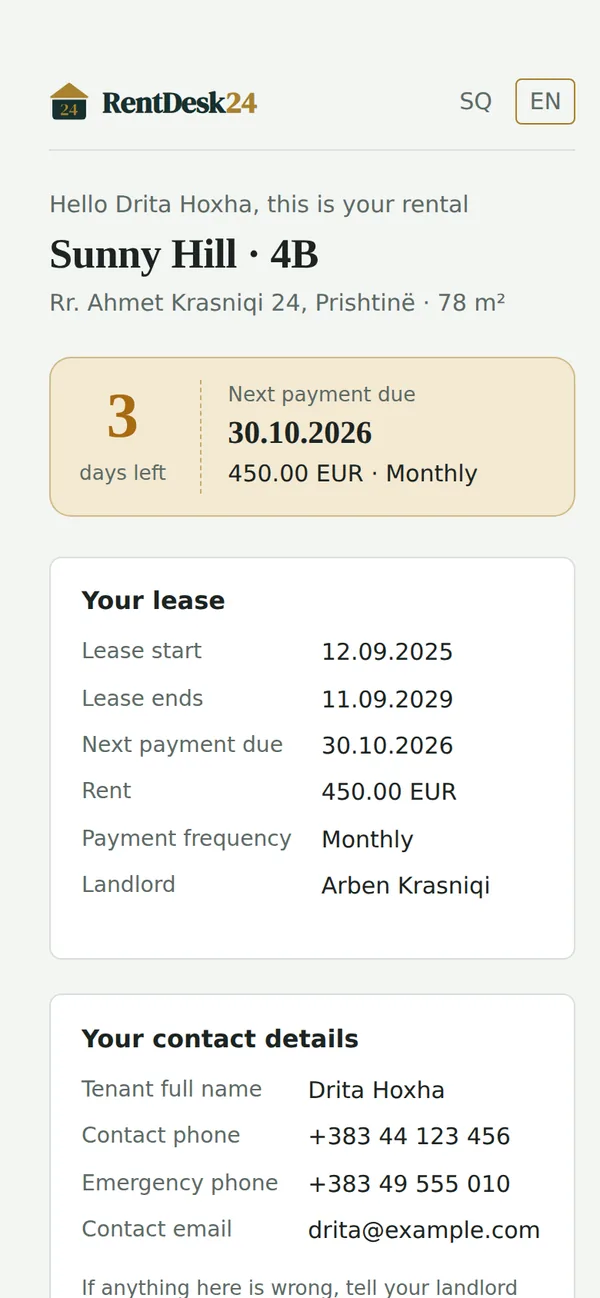
Your tenant gets a private page — no account, no app to install.
- If you ticked the option, the link is emailed to the tenant as soon as the lease is active.
- You can also copy the link from the lease (Tenant page → Copy) and send it by WhatsApp or SMS.
- The tenant sees dates, amount and bank details, and can upload their ID or invoices.
Lost phone? Press Create new link on the lease. The old link stops working immediately.
5. Let the reminders work
From now on RentDesk24 watches the dates for you.
- 7 days before each payment (you can change it), you get an email to remind your tenant.
- If you enabled it, the tenant gets a reminder too, in their language, with the bank details.
- 30 days before the lease ends, you get an email to renew or plan the next tenant.
- The Dashboard shows the next rent due, overdue payments and leases ending soon.
Good to know: each reminder is sent once. Nothing is sent for draft or finished leases.
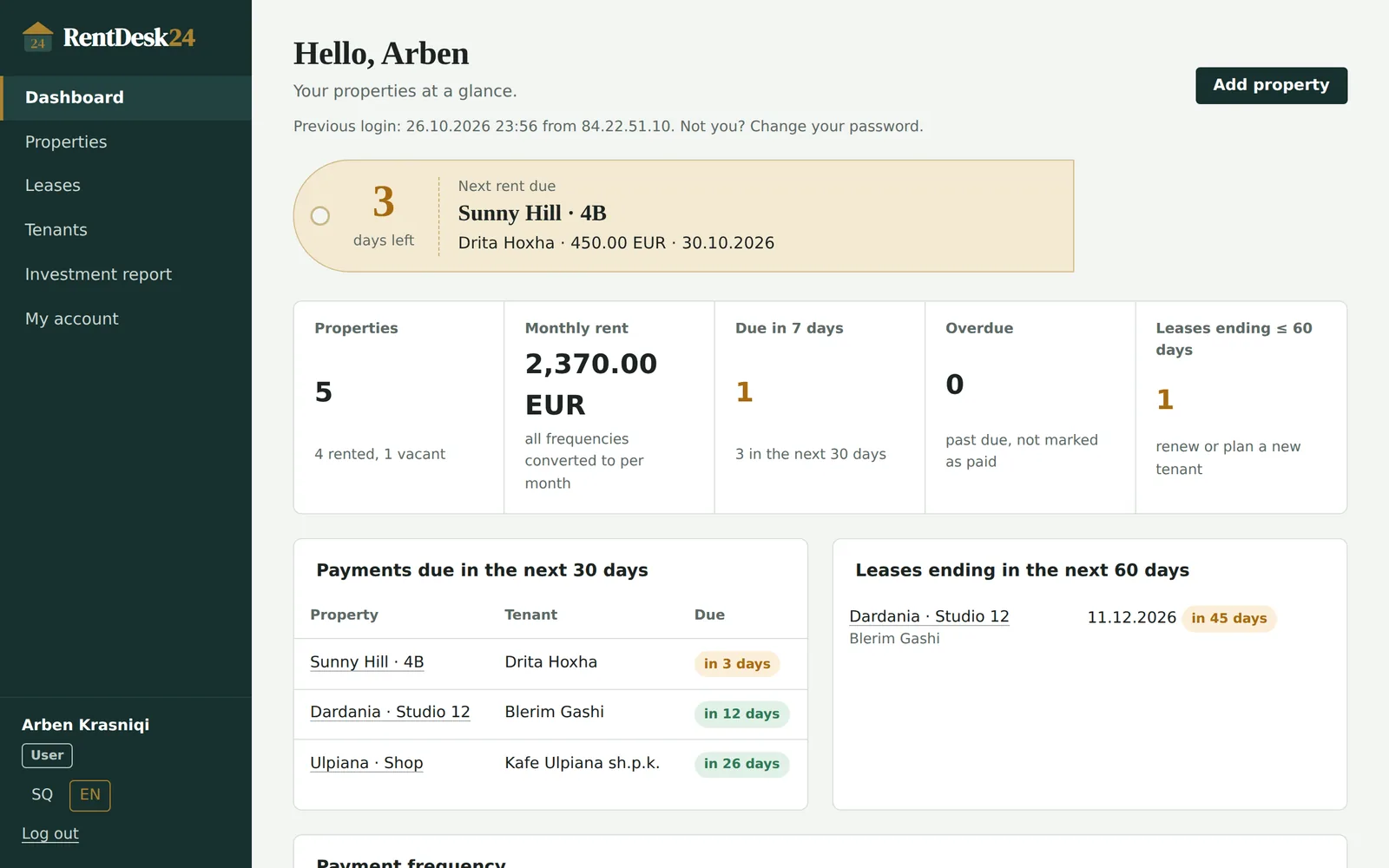
6. When the rent arrives, mark it paid
This is the one thing you do every month.
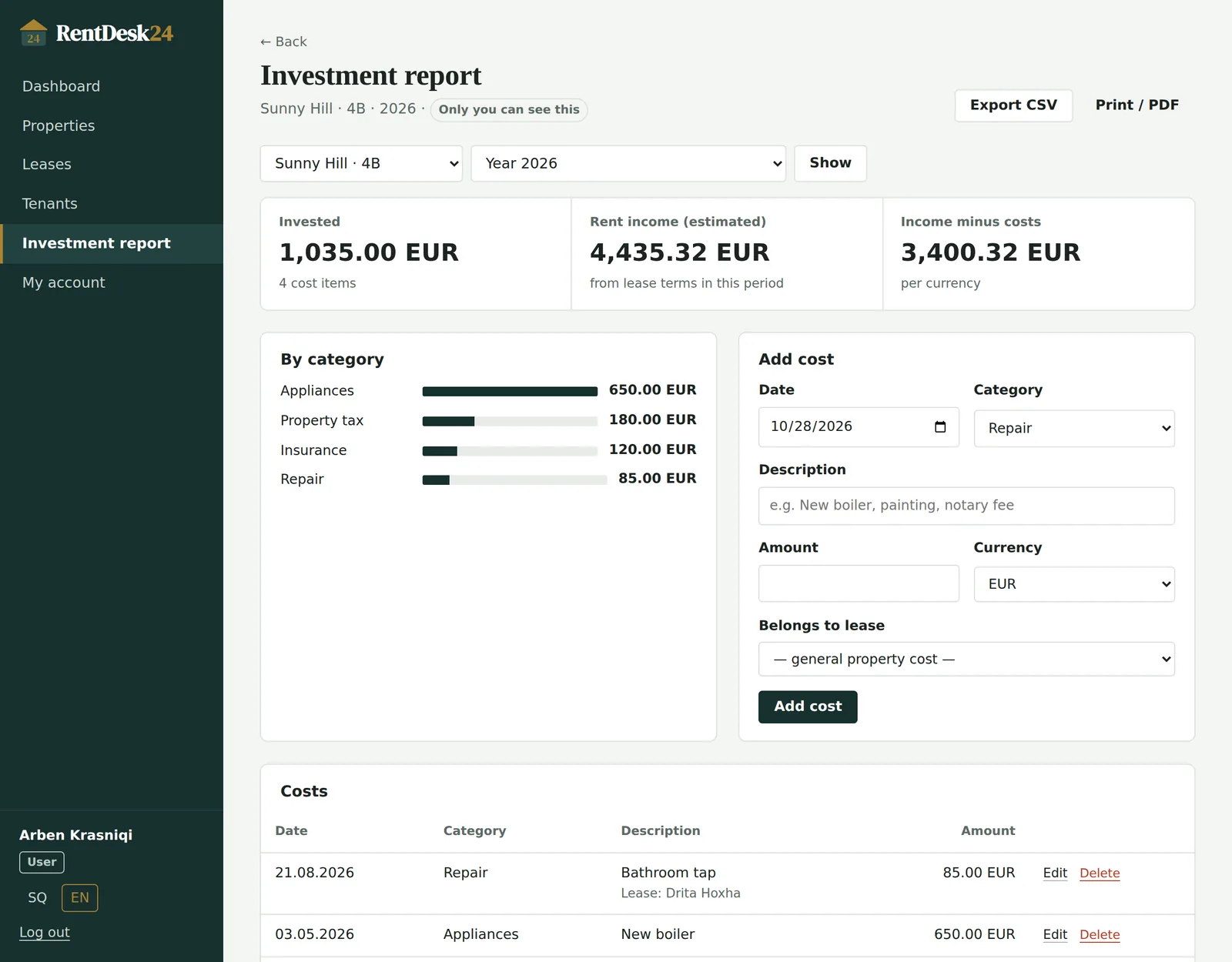
- Open the lease (from the dashboard or Leases).
- Press Mark as paid. The next payment date moves forward by one period.
- If the rent is late, the lease shows days late in red until you mark it paid.
Tip: use Email tenant now on the lease to send a reminder whenever you need one.
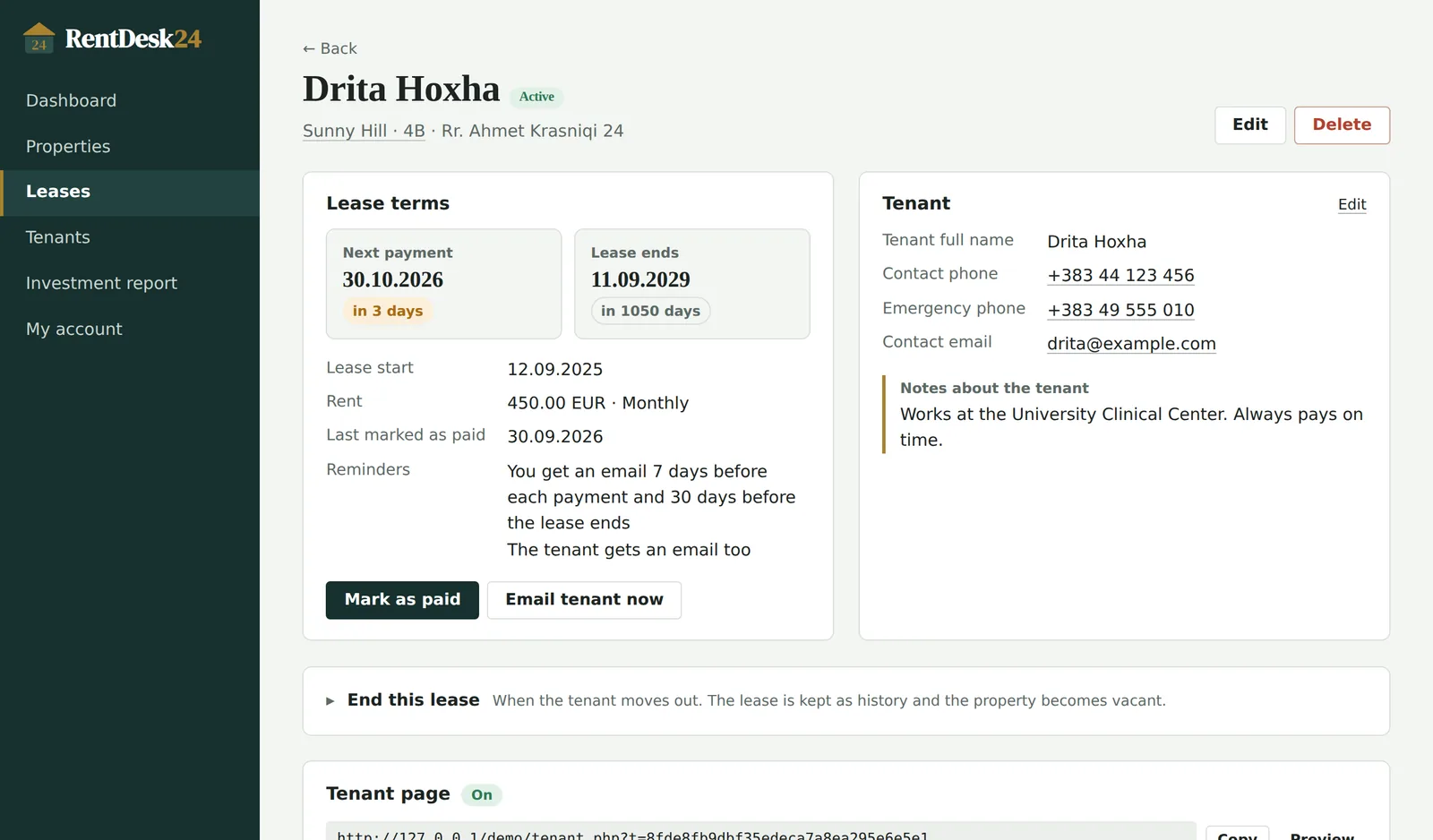
7. Track what you invest
Optional, but it pays off at the end of the year.
- On the property, press + Add cost (or open Investment report).
- Choose the date, category and amount — and, if it belongs to a tenancy, the lease.
- Open the report per year, per lease or all time, and export it to CSV or print it as PDF.
Private: costs are visible only to you — not to managers, administrators or tenants.
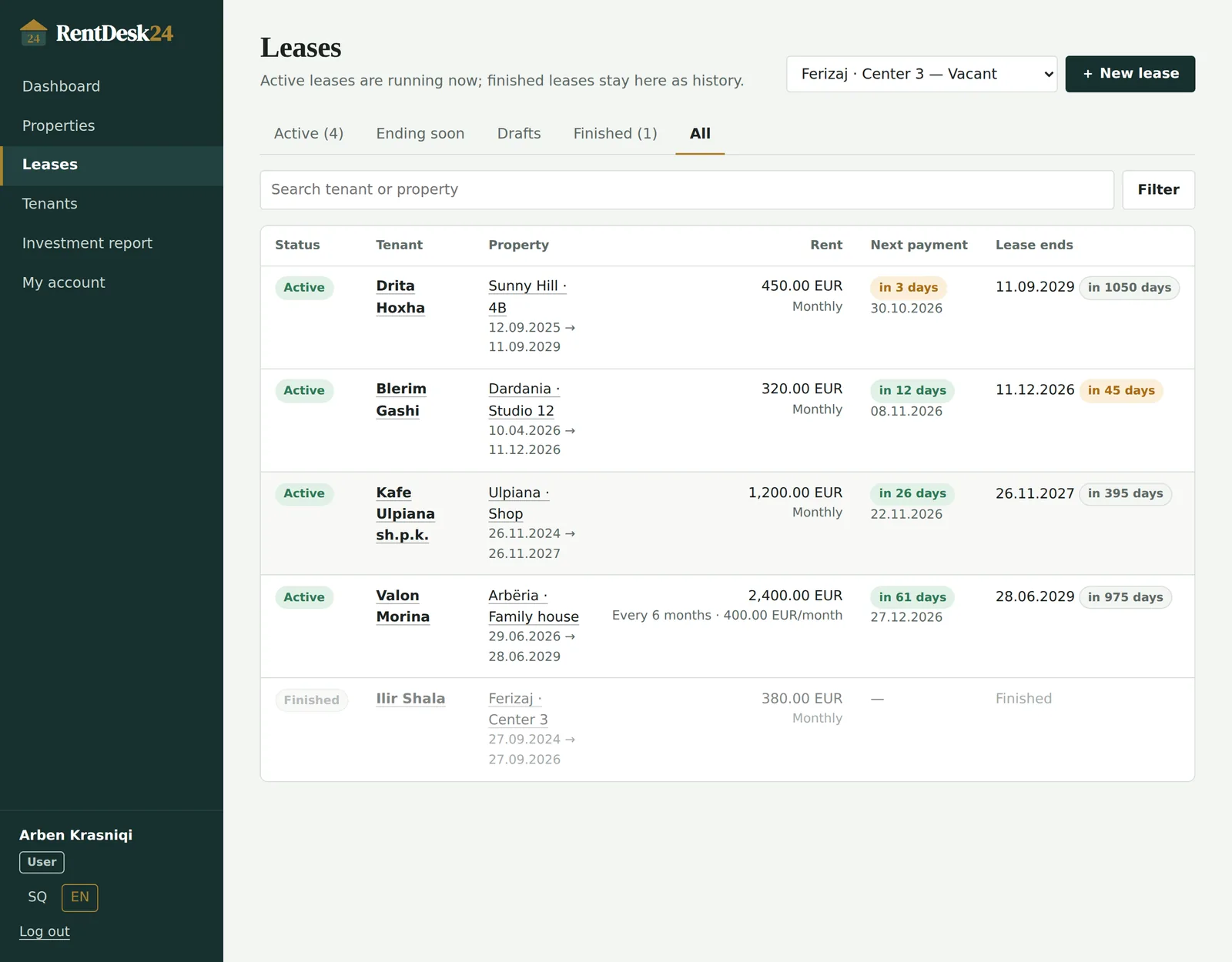
8. When a tenant moves out
Finish the old lease, start the next one — the property stays.
- On the lease, open End this lease, choose the date and add a note (e.g. “deposit returned”).
- The lease becomes Finished, reminders stop and the tenant page closes.
- On the property, press + New lease. Rent and reminder settings are filled in from the previous lease.
Planning ahead? Prepare the next lease as a draft while the current tenant is still there, and activate it on move-in day.
The rent cycle in one line
- Lease activeTenant gets their page link
- 7 days beforeReminder emails go out
- Rent dayTenant pays to your IBAN
- Mark as paidNext date moves forward
- 30 days before endRenew or plan ahead
- End leaseStart the next one
What the lease labels mean
Prepared but not running. No reminders, no tenant page.
Running now. Reminders are on and the tenant page works.
Active, but the start date is still in the future.
The end date has passed but you haven’t finished the lease yet. Finish it or extend the end date.
Kept as history. The property is free for a new lease.
Guides for every role
The dashboard shows the next rent due as a key tag. Brass means soon, red means late.
Open the lease and press Mark as paid when the money arrives. That’s it.
Tenant notes and investment costs are visible only to you.
Under My account, change your password, see recent sign-ins and forget remembered computers.
Users → Add user. People you add belong to your team.
You can see your team’s properties, leases and documents, but only the owner can change them.
Reset a password by email link or show a temporary one. You can disable a user, not delete them.
Everything an owner can do, you can do for your own properties too.
Open the link your landlord sent you. Bookmark it — it works for the whole lease.
Next payment, amount, IBAN with a copy button and the payment reference are all on the page.
Upload your ID, invoices or receipts (up to 5). Your landlord is notified by email.
If a phone number or email on the page is out of date, tell your landlord so they can update it.
Create managers and users, assign users to managers and change roles.
Decide what managers and users may do, from adding properties to resetting passwords.
Every login, change and upload with date and IP. Export it as CSV.
The dashboard warns you if uploads are too limited or private folders are exposed.
Ready for your first property?
It takes about five minutes. You can read the FAQ any time.